
Set up a DVR, ou stand-alone, to be accessed remotely is no big deal, but for those who have no experience below follows a step by step tutorial on how to set up your stand-alone to view your cameras from anywhere that has internet access.
1º Step: Check the information of your network
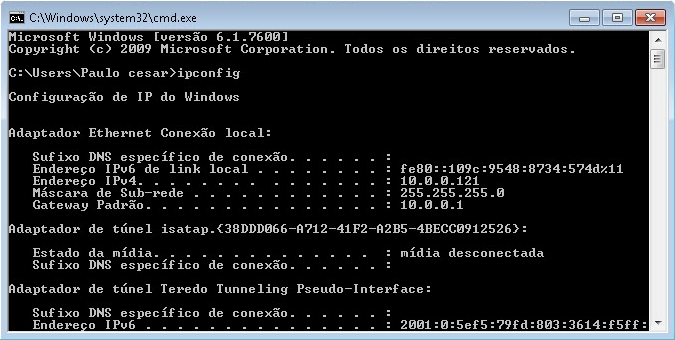
click in Start > run > type it CMD e de enter.
No Command prompt which opened type ipconfig e de enter.
Record the following information for later use:
- Subnet Mask
- default Gateway
2º Step: Configurar o stand-alone (internal and external access)
As there are several models the way to configure each DVR may vary, but the premise is the same.
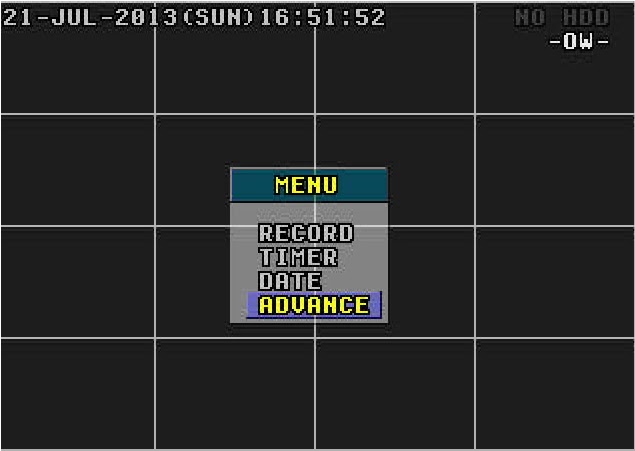
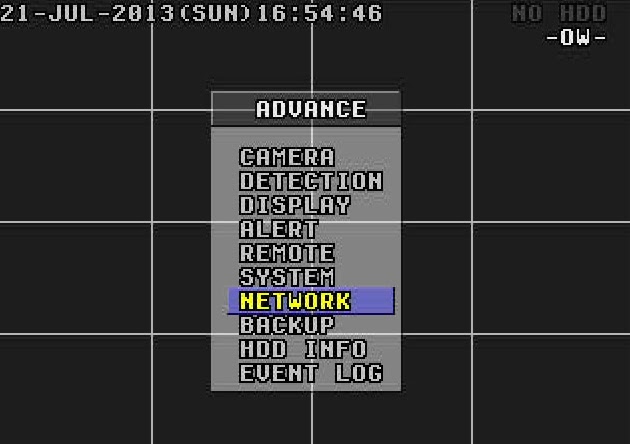
Menu > Advance > Network
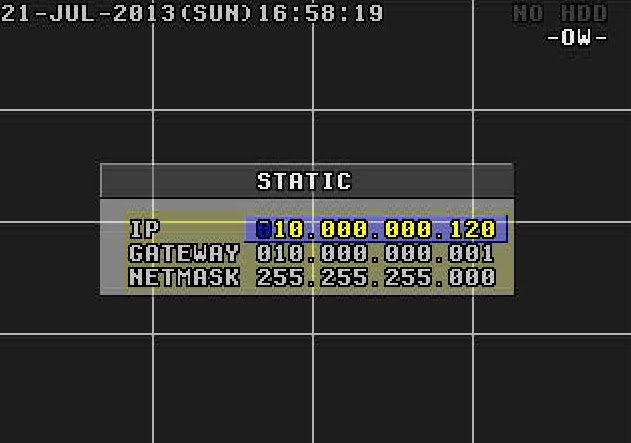
In Network Type, of O.k in Static and put the information picked up from the computer.
IP: You prefer. ( Example: 10.0.0.120)
Gateway: 10.0.0.1
Netmask: 255.255.255.0
Go back to the Menu Network.
DNS: 10.0.0.1 (the same gateway)
Port: It is the gateway to access your DVR. In this example I'll use port 1227, but you can use the number of your choice.
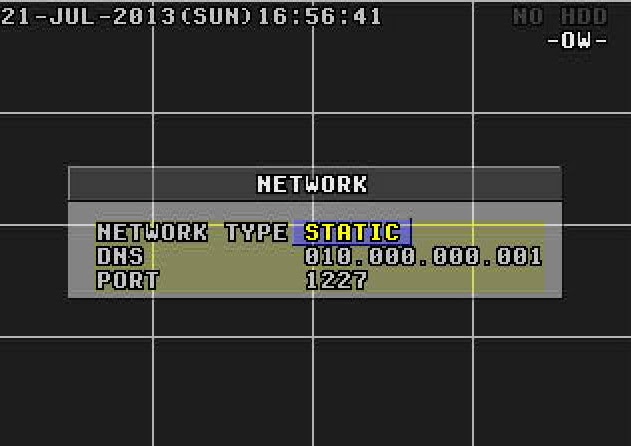
Obs.: If what you want is internal access, that you can view the cameras from any computer or device that is connected to your internal network, already done you don't need to configure anything else. To view the cameras simply enter your internet browser and enter the following address: http://ip-stand-alone:door (Ex: http://192.168.0.120:1227)
3º Step: Fix external IP
In almost all internet services available, our external IP is not fixed, and yes dynamic, ie every time your router is turned off or disconnected the next made it to connect with your Internet service will be with a different IP. Then this problem, to access the stand-alone we need to know the external IP current network it is connected, since it is not feasible to go to the place where the stand-alone is physically to check the IP address every time the router is turned off we will use a service that updates the IP automatically.
The two most commonly used are the No-IP e o DynDNS, both are paid but the No-IP has the ability to upgrade for free up to three IP addresses per account, for this reason I will use the No-IP for demonstration, but in both the configuration is basically the same.
First create an account at No-IP, after that enter the account created and click “Add Host”.
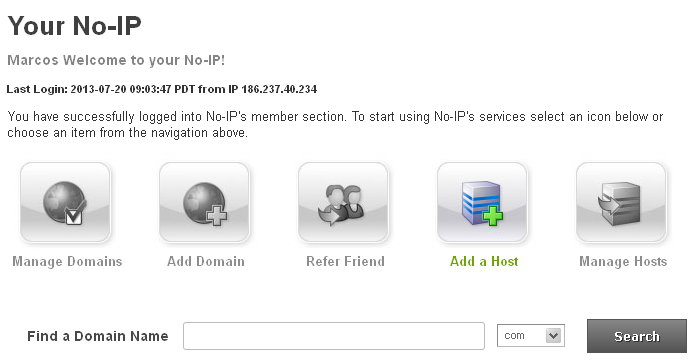
On the next page choose “Hostname” I had used to access your DVR, do not change anything and click “Add Host” at the bottom.
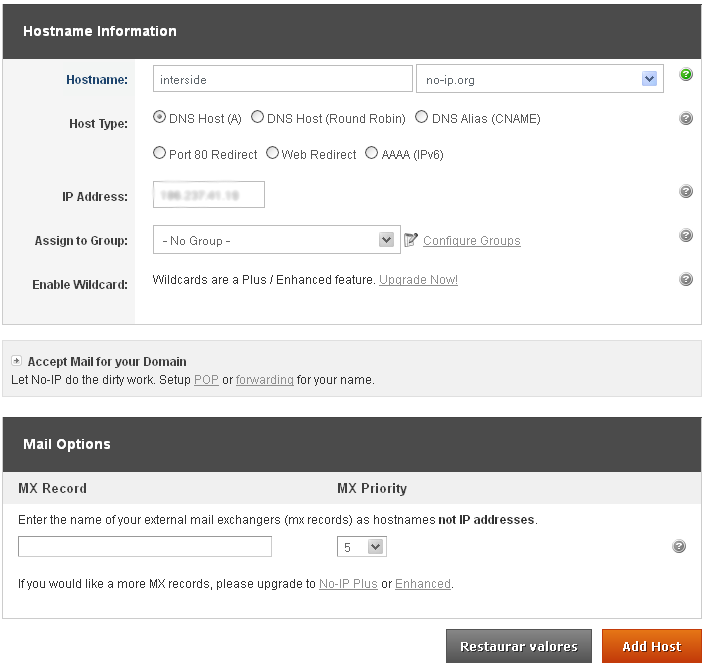
ready your hostname it is created.
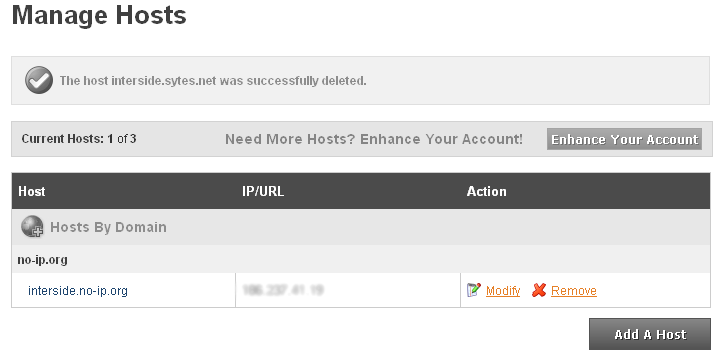
4º Step: Configure the router:
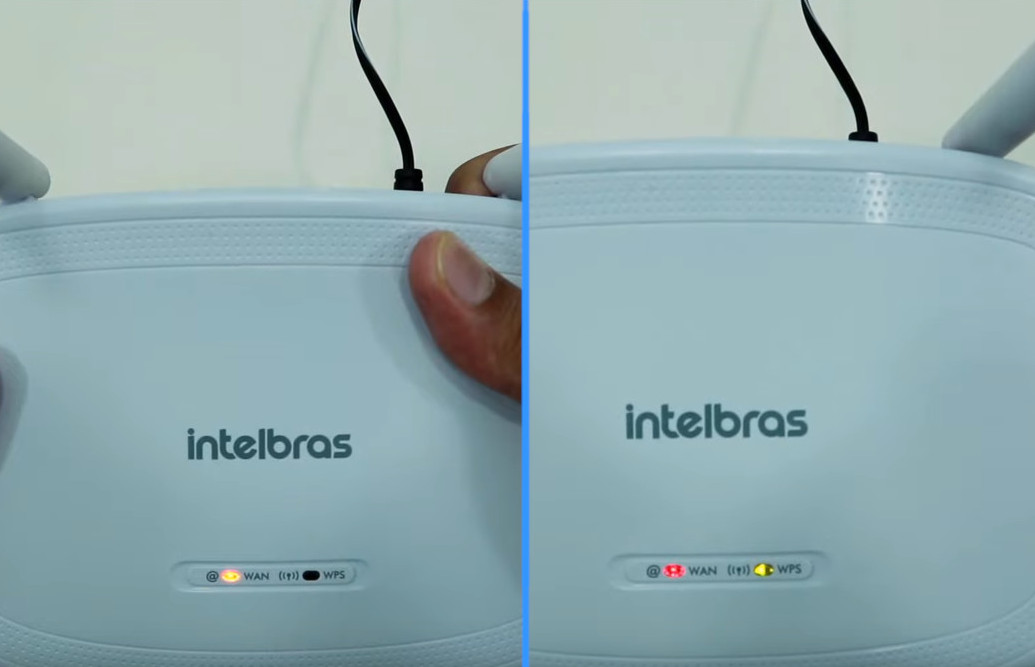
Now what we do is to set the IP and the stand-alone door. The router I'm using in this tutorial is the “WRN 240” gives Intelbras, but the configuration is basically the same for any router.
First you go redirection > Virtual server > Add
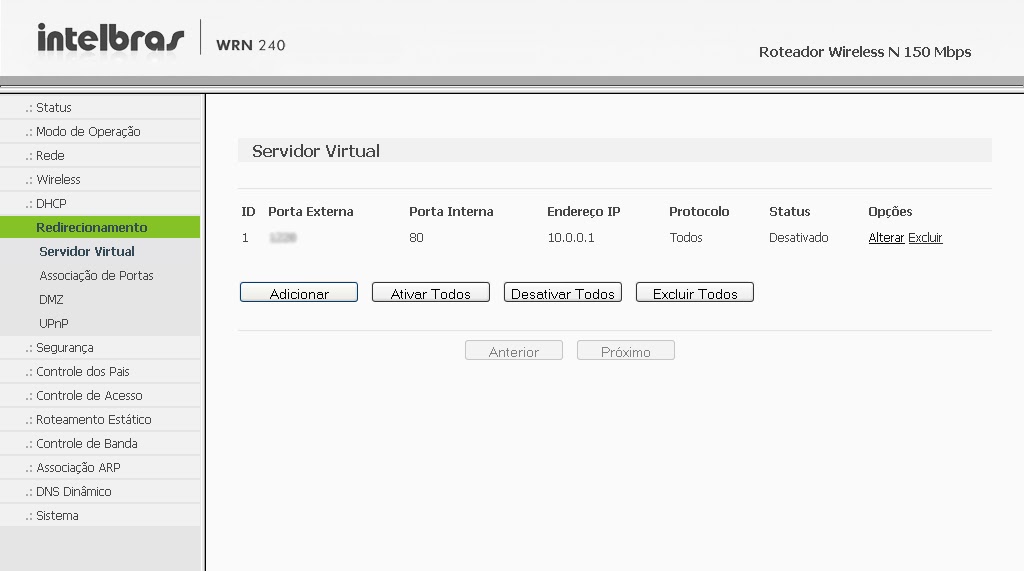
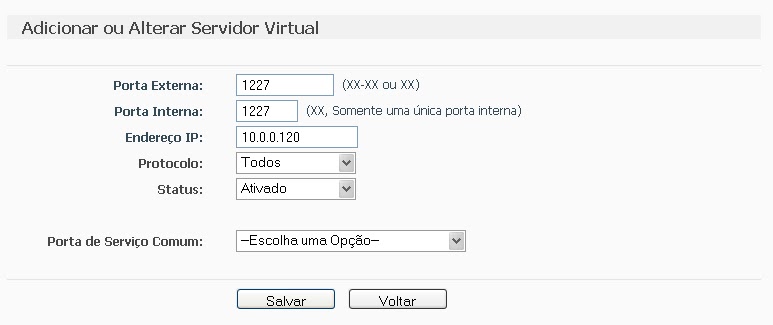
Place the information of the DVR and click save.
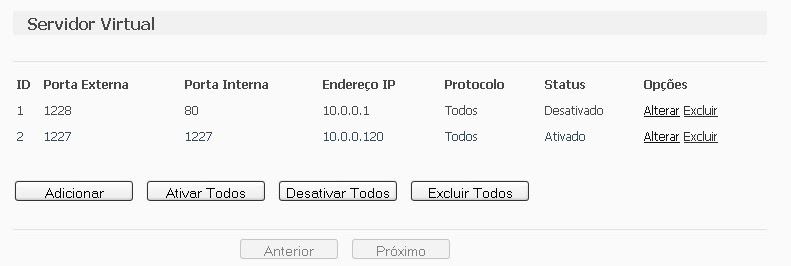
after saving, the port and IP that you set will look like this:
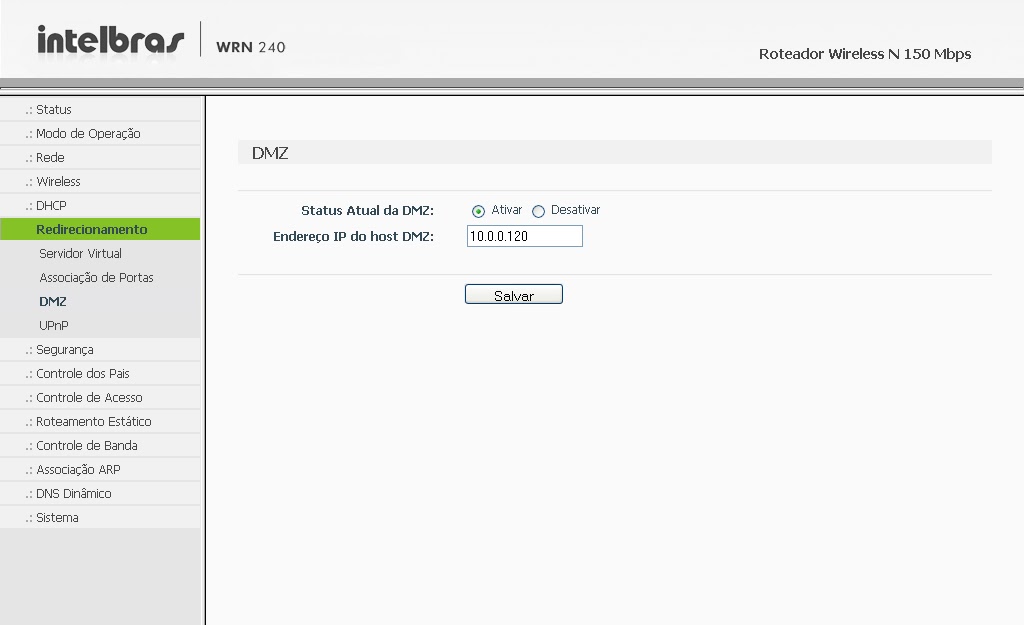
 Some people prefer to make the release of the DMZ ports, as it will be shown abaixo, but by enabling DMZ on your modem or router, you will be compromising the security of your device. Always release the doors manually, as shown above..
Computer security, a DMZ or demilitarized zone (demilitarized zone or DMZ), also known as perimeter network, is a physical or logical subnet that contains and exposes an organization's external border services to a larger, untrusted network, usually internet. Any devices located in this area, this is, between the trusted network (usually the local private network) and the untrusted network (usually the Internet), is in the demilitarized zone.
redirection > DMZ > Select enable, enter the IP of the DVR and save.
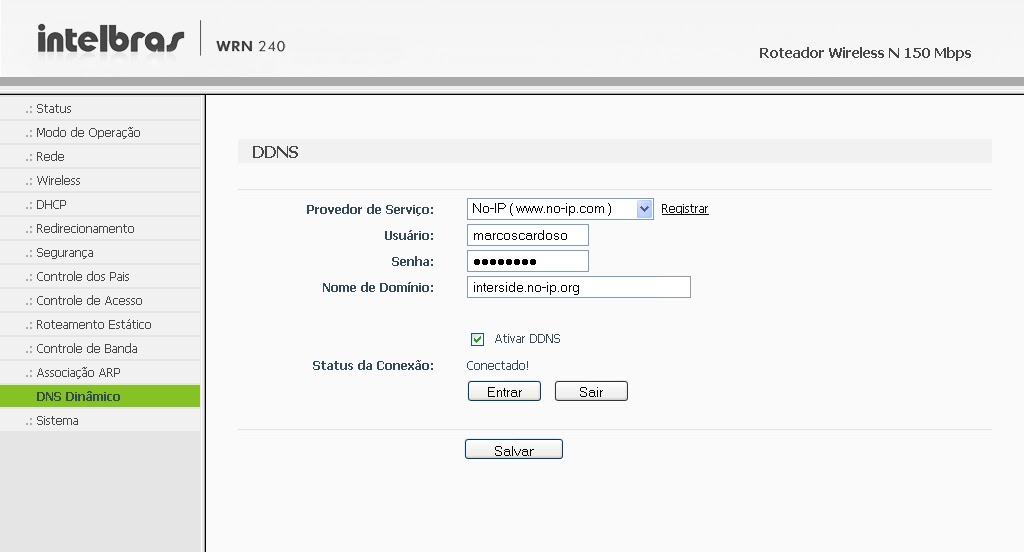
The next step is to configure the router to automatically update your network's IP in your NO-IP account.
Go to Dynamic DNS, enter your account information and the hostname/domain you created, click enter. After the “Connection Status” is like “Connected!” click save.
It is, Now you can view your cameras from anywhere in the world.
If you have questions or suggestions leave us comments.



321 Comments
Good afternoon,
Firstly I would like to congratulate you on the tutorial method, I made all the recommended settings, However, when I type the DDNS address in the browser, a blue screen appears saying "If your browser does not support the ActiveX to download, please click here."
What could have happened?
Pedro, There is no need to use programs to configure the router. The configuration of most routers is basically the same.
What is the model and manufacturer of the router in question??
Good evening, I'm a beginner, I have experience installing it, but I haven't installed remote access yet., I understood the tutorial in parts, but I didn't understand the router configuration part, The Intelbras router you are using has a specific program? because routers generally do not have installation programs, If the router I use doesn't have one, how do I configure it??
Doesn't work on new internet modems, humax. Very bad.
Most Internet modems, Oi and Vivo are blocked. Some settings appear but they don't work and others you can't even see the settings.
In this case you have to find a tutorial on how to unlock your modem, or contact the operator and explain the situation.
Good Morning,
Some NET modems are blocked. In some cases, you can find an unlocking tutorial on the internet., In other cases, a good option is to buy your own modem and replace it..
Maycon, Have you tried using the "admin" username?" and password "admin", If it doesn't work, contact us via email so we can try other alternatives.. And what works in your case?, agent put it in the comments later.
(blog.interside@gmail.com)
Hello, I can't access the dvr web client, says login failed, but I use the same login that accesses the dvr, com o username admin e password em branco, What can it be?obs: It's a Chinese DVR, You're not branded. Would you help me? Grateful
Here's how the screen looks:
http://i.imgur.com/7yjAGcD.jpg
Congratulations and thank you, it was a huge help.
José, I haven't done any installation with vivo's wireless system yet, But from what I've seen, it works.. The modem must be able to configure NAT and DDNS.
Good morning mate, I'm going to set up a dvr system on a site, There is a telephone there but no internet access, if I put those wireless internet modem, like one that vivo is selling now I can configure remote access to the dvr through it?
Thank you.
To.
Darlan, It could be the internet connection. Try lowering the video transfer quality in the DVR settings.